
SPF and DKIM (covered in our companion guides) each verify a different aspect of your outgoing mail's legitimacy. DMARC ties them together, telling receiving mail servers exactly what to do when a message claiming to be from your domain fails thos...
How to Use the DMARC Wizard to Stop Email Spoofing and Phishing
SPF and DKIM (covered in our companion guides) each verify a different aspect of your outgoing mail's legitimacy. DMARC ties them together, telling receiving mail servers exactly what to do when a message claiming to be from your domain fails those checks — a critical piece for protecting your domain from being used in spoofing and phishing attempts. StackCP's DMARC Wizard makes setting this up straightforward, with no manual DNS record writing required.
What Is DMARC, and Why Does It Matter?
Without DMARC, even if you've set up SPF and DKIM correctly, receiving mail servers have no explicit instruction on what to do when a message fails those checks — some might reject it, some might deliver it anyway, and the inconsistency leaves room for spoofed mail (messages pretending to be from your domain) to still reach inboxes. DMARC closes this gap by publishing a clear policy: "if a message claiming to be from my domain fails SPF and DKIM, here's what you should do with it."
This matters for two connected reasons:
- Protecting people who receive spoofed mail claiming to be from you — customers, partners, suppliers — from phishing attempts that damage their trust in your business.
- Protecting your own domain's sending reputation, since a domain frequently spoofed for phishing can see its legitimate mail increasingly filtered as a side effect, even when you didn't send the offending messages yourself.
Prerequisites: Set Up SPF and DKIM First
DMARC builds directly on SPF and DKIM — it doesn't replace them. Before using the DMARC Wizard, make sure:
- SPF is configured (specifying which mail servers are authorized to send on behalf of your domain).
- DKIM is set up (see our companion guide) and confirmed working.
Step 1: Open the DMARC Wizard
- Log in to StackCP.
- Go to Manage Hosting, then Manage on your package.
- Select DMARC Wizard under the Email section.
- Choose the correct domain if you manage more than one.
Step 2: Choose Your Policy Type
The DMARC Wizard will ask you to select a policy — the instruction receiving servers should follow when a message fails SPF/DKIM checks:
- Quarantine — failing messages are treated with suspicion and typically routed to the recipient's spam/junk folder, rather than being outright blocked. This is a reasonable, lower-risk starting point, since it reduces spoofed mail reaching inboxes without the higher stakes of full rejection.
- Reject — failing messages are blocked outright and never delivered to the recipient at all. This is the strongest protection, but should generally only be applied once you're confident your own legitimate mail is passing SPF and DKIM consistently — otherwise, you risk your own genuine mail being blocked if something in your configuration isn't quite right yet.
Step 3: Generate and Apply the Record
Once you've selected your policy, the wizard generates the appropriate DMARC TXT record and automatically adds it to your domain's DNS zone, provided your nameservers are pointed to StackCP. No manual DNS editing is required.
Step 4: Start Cautious, Then Tighten Over Time
A sensible, low-risk rollout approach:
- Start with Quarantine rather than Reject, giving yourself a safety margin while you confirm everything is working as expected.
- Monitor your own outgoing mail over the following weeks to confirm it's consistently passing SPF and DKIM checks (see our DKIM guide's verification steps).
- Move to Reject once you're confident your legitimate mail is unaffected, for the strongest protection against spoofing.
Common Mistakes Beginners Make
- Setting up DMARC without SPF and DKIM configured first. DMARC depends on these checks already being in place — without them, there's nothing for DMARC's policy to actually act on.
- Jumping straight to a Reject policy before confirming legitimate mail consistently passes SPF/DKIM, risking your own genuine mail being blocked.
- Setting up DMARC and never revisiting it. Since it depends on SPF and DKIM staying correctly configured (for example, if you add a new mail-sending service later, like a marketing platform or CRM, that also needs to be authorized), it's worth reviewing your setup whenever your mail-sending tools change.
Troubleshooting
"I'm not sure if my SPF and DKIM are actually passing before I set a Reject policy."
Send a test email to an external address you control and check the message headers for spf=pass and dkim=pass results, as described in our companion DKIM guide, before tightening your DMARC policy.
"I added a new email marketing tool and now some of my mail seems to be failing checks." Any new service sending mail on behalf of your domain needs to be included in your SPF configuration and, ideally, set up with its own DKIM signing — a common oversight when adding new tools after your initial DMARC setup.
"I'm managing multiple domains and I'm not sure if each needs its own DMARC record." Yes — DMARC, like SPF and DKIM, is configured per domain, so each sending domain needs its own setup.
Understanding DMARC Reporting (If Available)
Full DMARC implementations often include an optional reporting address, where receiving mail servers send aggregate data about messages claiming to be from your domain — including ones that failed authentication. If StackCP's DMARC Wizard offers a reporting address field, setting this up gives you visibility into spoofing attempts against your domain over time, rather than just the pass/fail policy enforcement itself. This is a genuinely useful addition once your core Quarantine-then-Reject rollout is complete, since it turns DMARC from a purely defensive, invisible mechanism into something you can actually monitor and learn from.
Putting the Full Picture Together: SPF, DKIM, and DMARC
It's worth stepping back and seeing how these three pieces, covered across this guide and its companions, fit together as a complete system:
- SPF answers: "which servers are allowed to send mail as my domain?"
- DKIM answers: "how can a receiving server verify a specific message genuinely came from my domain, unaltered?"
- DMARC answers: "what should happen when a message fails those checks, and who should be told about it?"
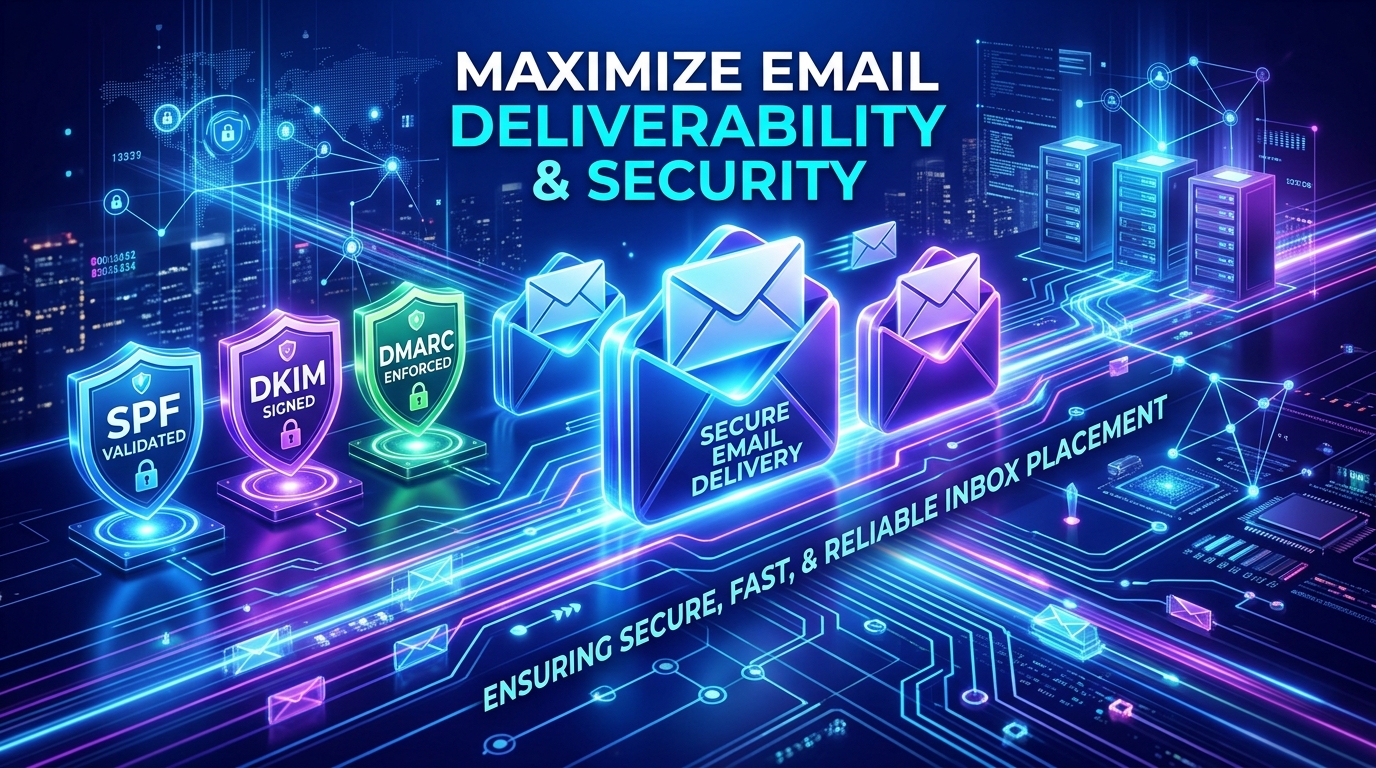
Configured together, these three form a well-rounded, industry-standard approach to email authentication — precisely the kind of setup that improves both your deliverability (legitimate mail reaching inboxes) and your domain's protection against being impersonated by others.
Looking for High-Speed, GST-Compliant Web Hosting in India?
Deploy your website on ThinkOnline.IN's autoscaling Samsung NVMe SSD infrastructure with Free SSL, 1 Tbps+ Anti-DDoS, and 24/7 India support from ₹75/mo.
❓ Frequently Asked Questions
📚 Suggested Articles
Need Help Choosing the Right Hosting Plan?
Our hosting architects and technical support team are available 24/7 to guide you.